
Skip to content
Welcome to our new website! Chat with a pro to take your lawn from good to great!
blog-common-lawn-issues-4
Common issues & care for your lawn

More about what causes your lawn to get ugly over time, and how to fix it.

Learn More >

Access Your Customer Portal

We are upgrading your online experience!

Please check your email for updated login credentials to your new customer portal.

Thank you for choosing Turf Doctor!

Login to Your Account

 
-View past & upcoming services
-See technician recommendations
-Make secure payments
-Submit a customer service case
-and much more!

 

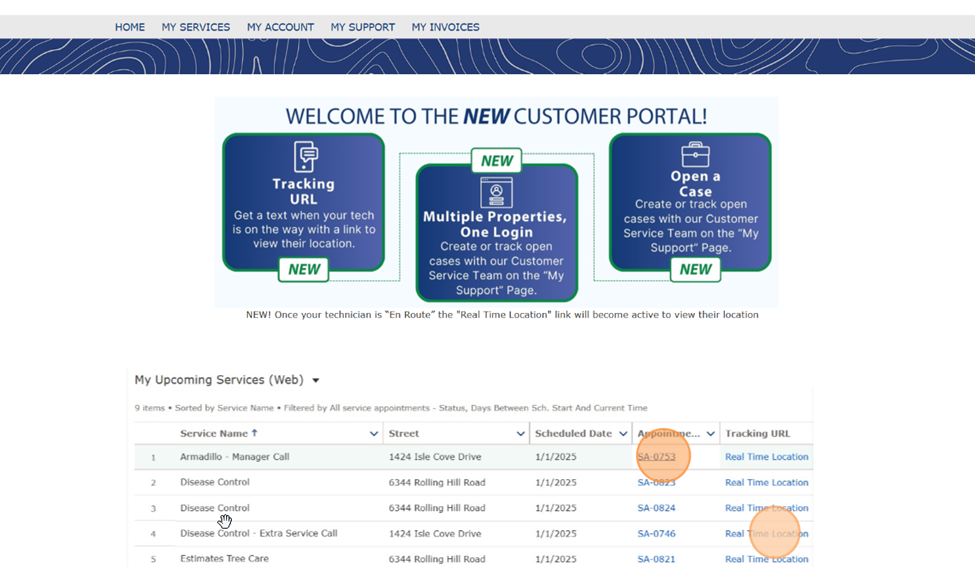
Here are just a few benefits of
your new Customer Portal:

 FAQs

How do I login to my Customer Portal?

To access your new Customer Portal, open the email* from Turf Doctor with the subject line: Welcome to Your New Turf Doctor Customer Portal!

*If you have not received an email inviting you to the Customer portal, move to the next question, "How do I register?"

To visit the Customer Portal Login screen, click the "Customer Portal" button in your email or click this link:

https://www.mylawnportal.com/s/login/?expid=TurfDoctor


Select “Forgot Password”. You will be emailed a link to reset your password.
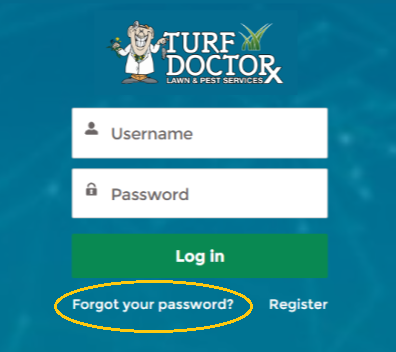
Customer Portal login screen showing "Forgot Password"

Within the email, you’ll find your new username. Copy your new username and paste it into the Password Reset screen.
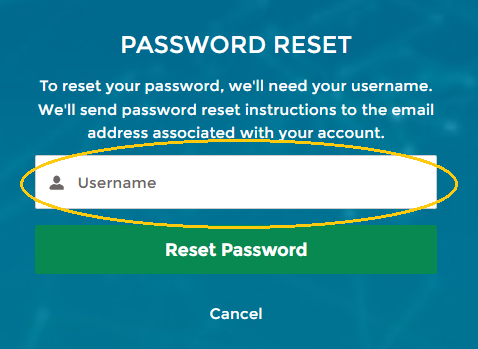
Email showing username for password reset

After you select "Reset Password", open your email and follow the instructions to continue with the password reset.


How do I register a new account?

Each new user should receive an email from Turf Doctor with the subject line: Welcome to Your New Turf Doctor Customer Portal!

Your username will be included in that email. If you accidentally deleted your 'Welcome' email and need access to your username, please call our office: (207) 622-6600.

If you have not received an email and would like to register yourself online, visit your Customer Portal: https://www.mylawnportal.com/s/login/?expid=TurfDoctor

Select "Register".
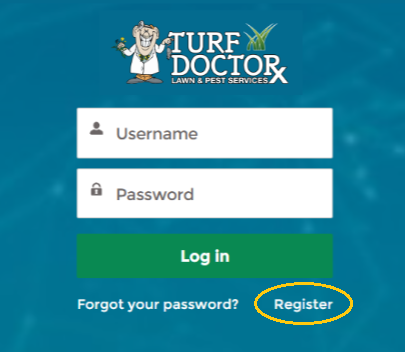
Customer Portal registration screen showing "Register"

Fill out the form and select "Register".
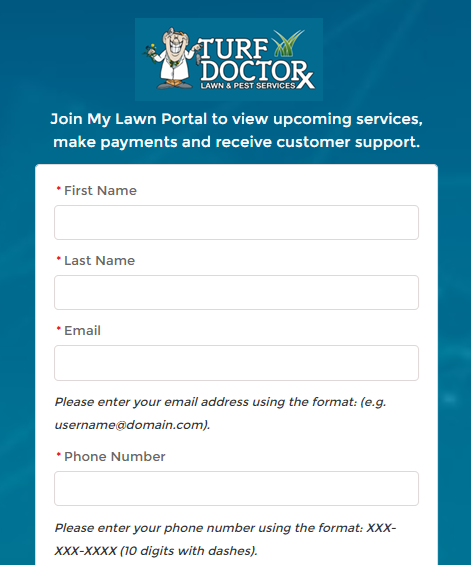
Customer Portal registration form before selecting "Register"


How can I view upcoming services?
Once logged into the Customer Portal, find Upcoming Services by scrolling below the Welcome message.
 
You may click on the Service Appointment link to view details about it.
 
Customer Portal dashboard showing upcoming service appointments
How do I view my account details?

Once logged into the Customer Portal, click “My Account.” You’ll find the account owner, phone number, and billing address along the top.

Customer Portal My Account screen showing account owner and billing details

The account number is found under “Details”, as well as the account status, service branch, and preferred communication method.

By clicking “Related” you’ll see associated Contacts and Assets (properties). To access more information, click on the individual contact names or property addresses.
What is my current billing status?
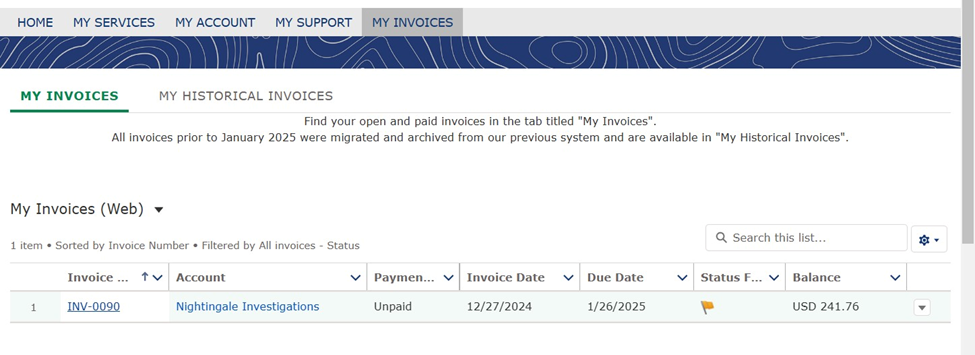
After logging into the Customer Portal, visit “My Invoices”.
 
Find your open and paid invoices in the tab titled “My Invoices”. Click on an invoice number to view status details.
 
Customer Portal My Invoices page showing open and paid invoices
How do I add a new payment method?

To add a new payment method, login to your Customer Portal. 

Navigate to "My Payments" and select "Add New Payment Method". Enter your new payment information into the pop-up window and submit.
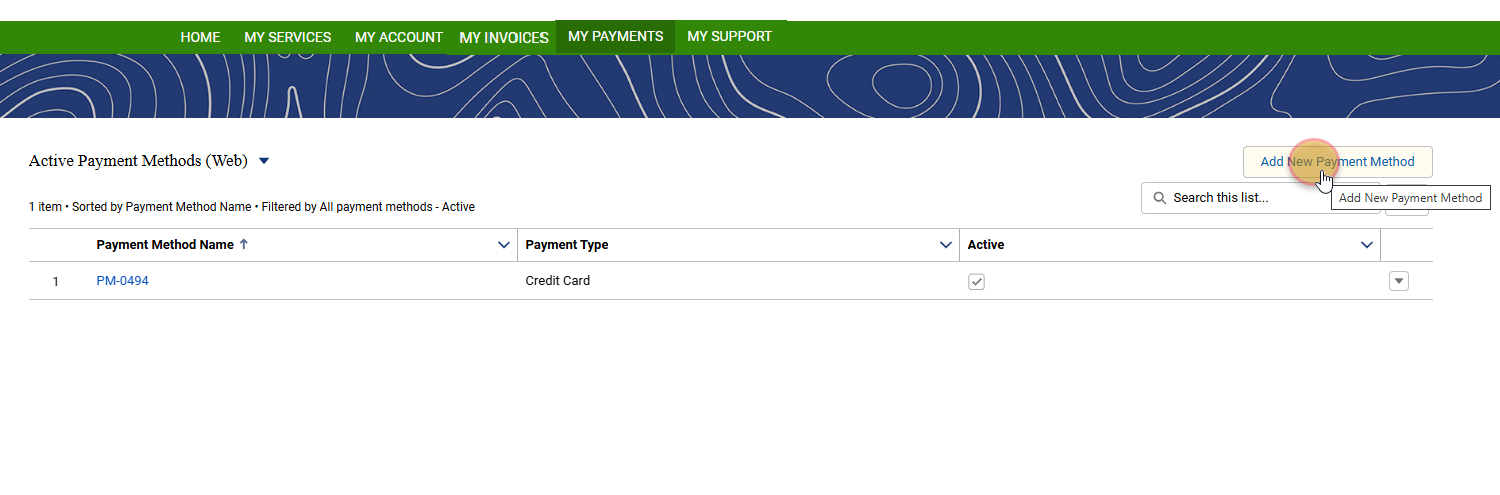
Customer Portal My Payments screen showing "Add New Payment Method" option

How do I make a payment?

When logged into your Customer Portal, click "My Invoices" in the main menu. Select the "Pending Invoices" or "Declined Invoices" tab, then click "Click to Pay".
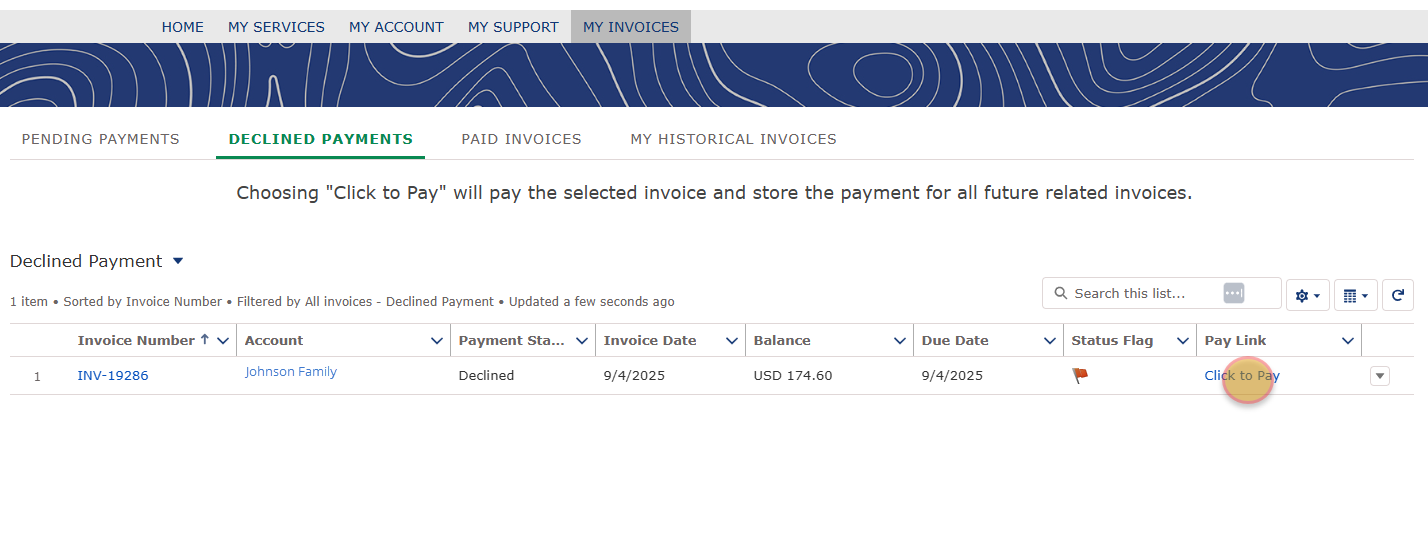
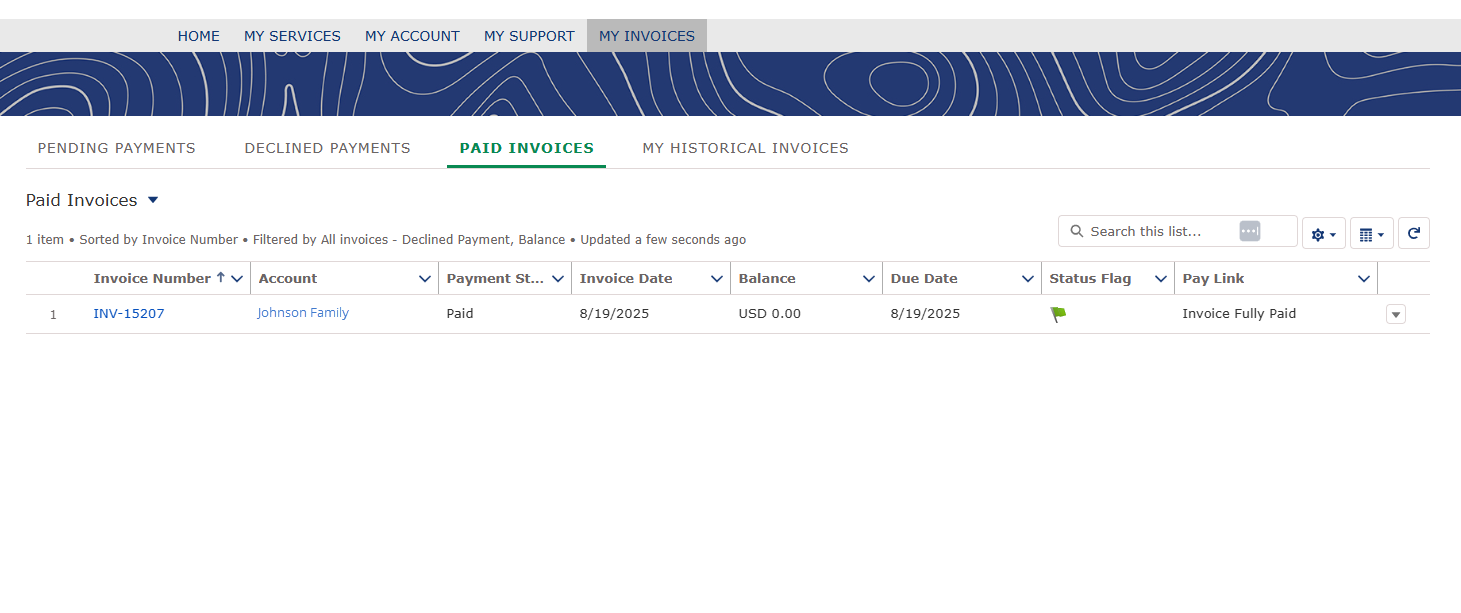
Customer Portal invoice payment screen showing "Click to Pay" option

Can I access past invoices?
After logging into the Customer Portal, visit “My Invoices.”
 
Find your open and paid invoices in the tab titled “My Invoices.” Invoices from the previous Customer Portal are available in “My Historical Invoices.”
 
Click on an invoice number to view status details.

Customer Portal invoices list showing current and historical invoices


To download a copy of your invoice, click the “Generate Invoice Document” button.
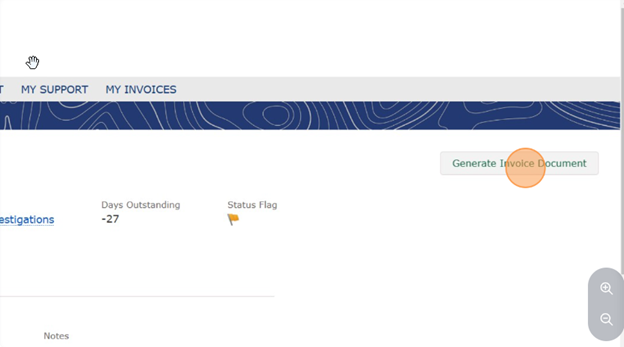
Invoice detail screen showing "Generate Invoice Document" button


After generating, the PDF can be found in the “Related” section of the page.
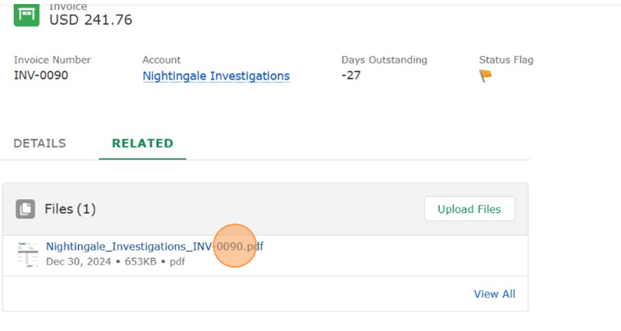
 

How do I add or change my services?

Customers cannot add or change a service from the Customer Portal, but they can request a change from the Portal by visiting “My Support” and clicking “Contact Support” to open a new ticket with our Customer Service Team.

Customer Portal My Support screen showing "Contact Support" option

How do I change my password?

To reset your password, visit your Customer Portal: https://www.mylawnportal.com/s/login/?expid=TurfDoctor

Select “Forgot Password”. You will be emailed a link to reset your password.

Customer Portal login screen showing "Forgot Password"

To access your username, open the email* from Turf Doctor with the subject line: Welcome to Your New Turf Doctor Customer Portal!
 
Copy your username and paste it into the Password Reset screen.
 

*If you have not received an email inviting you to the Customer portal, move to the question, "How do I register?"

Email showing username for password reset

After you select "Reset Password", open your email and follow the instructions to continue with the password reset.
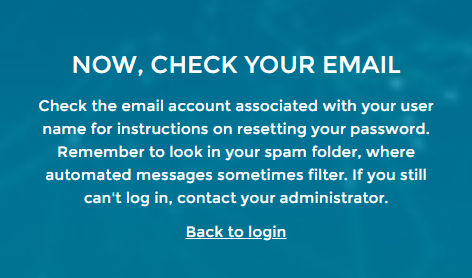
Password reset confirmation email instructions

If I have multiple properties, how can I view them all in one Customer Portal? We’re happy to help! To link multiple properties under your Customer Portal, just email our team at CustomerCare@theturfdoctor.com. We’ll get everything set up for you.
How is my data secure? We care about you and protecting your data. We keep your credit card information safe by utilizing tokenization. Card information is never stored directly in the system, instead it is replaced with unique tokens that only the payment gateway can decrypt, significantly reducing the risk of data exposure.

Still have questions?

 
Our team is happy to help! Give us a call at (207) 622-6600